Shadowrocket
Shadow Launch Technology Limited
App Store app ID: 932747118
App Store · Verify and purchase
A paid app with a one-time purchase, available only on the App Store. This page covers store regions, app verification, installation, and restoring purchases. Refer to the App Store listing for pricing, system requirements, and purchase availability.
A one-time app purchase does not include a service plan. You’ll need your own subscription or server details to use the app.
Store / Account
Shadowrocket’s availability depends on the App Store storefront. The app is not available in the mainland China storefront, so searching for its name there may not show the product. Your Apple ID country or region determines which storefront you see. Your device’s location, display language, and store region are separate settings; changing the device language alone will not switch your account to another storefront.
The App Store button on this page links to the US product page for app ID 932747118. A product page may be viewable in a browser even if your account is not eligible to purchase from that storefront. After opening the App Store, check the account, currency, and purchase messages shown on your device. If you see a region notice, verify your account status before proceeding.
Menu names may vary slightly by system version. Check the account used for Media & Purchases, not just the iCloud account name. These may be different accounts. Purchased apps belong to the account that bought them, and you’ll need to check that same account when restoring a purchase.
If the region is correct but the app still doesn’t appear, check Content & Privacy Restrictions and age rating settings in Screen Time to make sure App Store search results are not restricted. Search for the full name, Shadowrocket, or open the product page from this guide. Don’t rely on a Chinese nickname, search ranking, or similar-looking icon to identify the app.
Verify / 932747118
Search results may include apps with similar names or icons. On the product page, check the developer name, official icon, and app ID. All three should match. Screenshots can help you recognize the interface, but they do not verify the app’s identity in the store.
Shadowrocket
Shadow Launch Technology Limited
App Store app ID: 932747118
Check the developer information on the product page. The full name should be Shadow Launch Technology Limited. Don’t pay based on the product name alone, and don’t treat a search ad’s placement as proof of identity. If a different developer is listed, it isn’t the product covered by this guide, even if the name looks similar.
Compare the icon with the official one above: look for the white background and blue-purple outline. An icon is a useful clue, but a similar image alone is not conclusive. Check the developer name and app ID as well. The site header uses this same official icon; don’t rely on approximate color or an icon that merely looks similar.
The address linked from this page ends with id932747118. This number identifies the product; it is not a version number and does not change with the interface language. You can check the URL in your browser or verify the link in the App Store product sharing details. If any of the three identifiers don’t match, stop the purchase and reopen the product page linked from this guide.
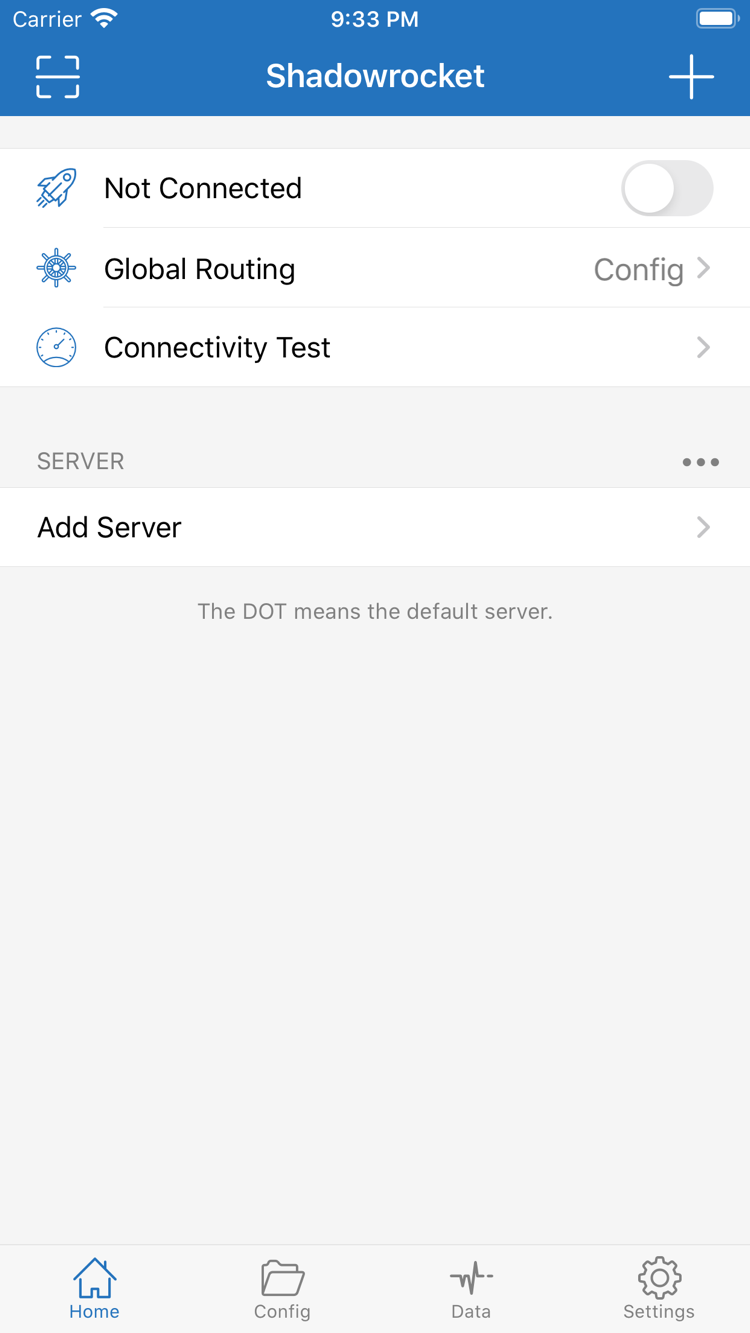
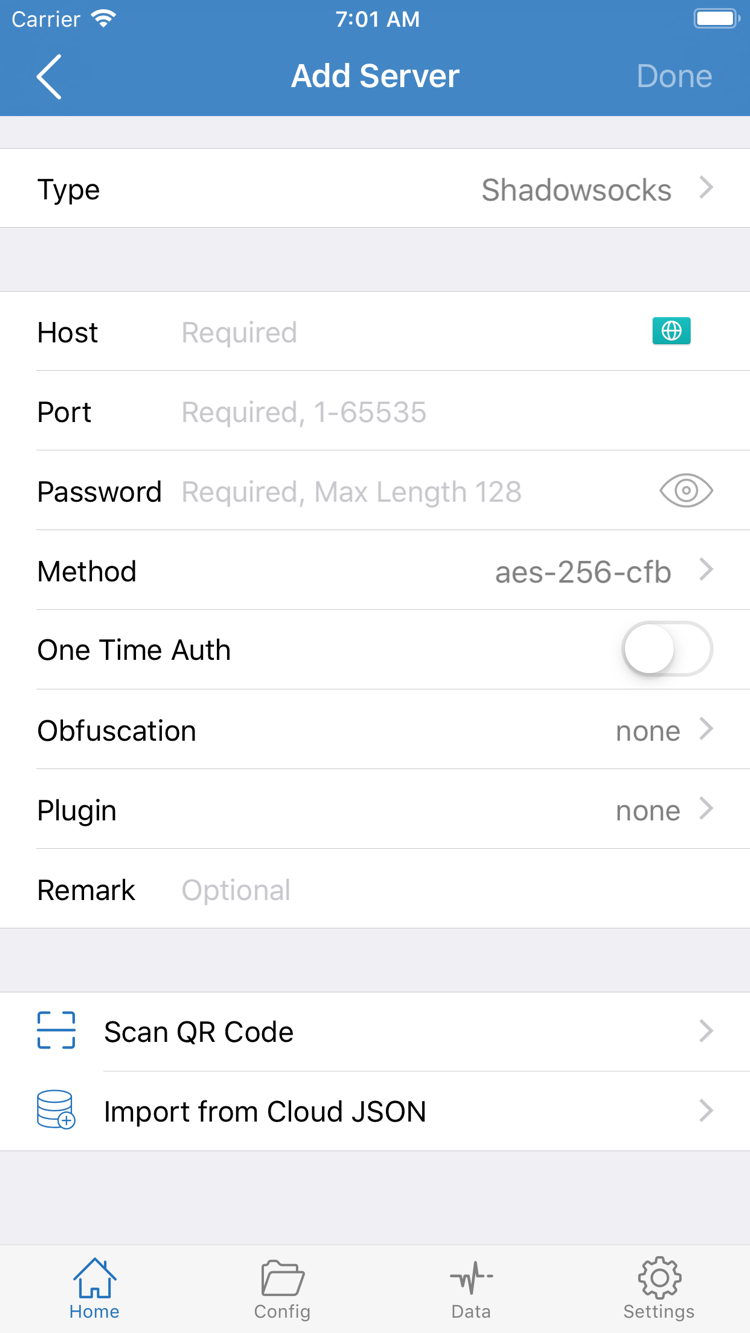
The two images alongside this text are official App Store screenshots. Home shows the connection switch, Global Routing, Connectivity Test, and SERVER section. Add Server shows the fields for a single server. The interface may change over time, so use what appears on your device; a button moving does not by itself mean the app is different.
Device / iPhone
Open the product page on your iPhone, check the compatibility section, then confirm the price and purchasing account. Refer to the App Store listing for system requirements. If your device doesn’t meet the current requirements, check its system update options rather than repeatedly tapping the purchase button. Also make sure you have enough storage and a working network connection so a pending download isn’t mistaken for a failed purchase.
After confirming your purchase in the App Store, wait for the download to finish, then open Shadowrocket from the Home Screen. It’s normal to see a disconnected state the first time you open Home: buying the app only gets you the app. It does not fill in a server address, account password, or subscription details. Prepare your own valid configuration, then use Add Server or import your existing subscription as needed.
The first time you try to connect, the system may ask for permission to add a VPN configuration. This allows the app to create the corresponding network configuration on your device; it is not a request to pay for the app again. Check that Shadowrocket initiated the action, then review the system prompt and authenticate if needed. Installing the app and allowing a VPN configuration are separate steps.
If you’re only checking that the purchase worked, leave the connection switch off and make sure Home and Add Server open normally. Then import your own details, select the default server on Home, and check the Global Routing mode. Config, Proxy, and Direct determine how requests are handled; they do not change the app’s purchase status.
If the app is installed but won’t connect, focus on your existing configuration, network, and server details rather than buying it again. For import steps, your first connection, and how to use Connectivity Test, see the setup guide. To review what each setting does, continue to the Settings guide.
Device / iPad
Shadowrocket supports iPhone and iPad. If you bought it on iPhone with an Apple ID, you can redownload it from your App Store purchases on a compatible iPad using the same account. Refer to the App Store listing for compatibility, system requirements, and purchase availability. To confirm the account, check Media & Purchases rather than relying only on the iCloud account shown at the top of Settings.
An iPad’s larger display may use a different layout for lists and editing than an iPhone. Interface labels such as Home, Add Server, Config, and Settings remain useful landmarks in this guide. If an item appears at the bottom of a screenshot but is arranged differently on your device, look for the same label and continue; there’s no need to match every pixel.
Keep purchase history and configuration data separate. Redownloading the app on iPad does not transfer server entries, rule files, or subscription details from another device. Before using the app, check what is already on this device. To migrate data, use configuration files you saved or a sync feature you have confirmed is enabled, then verify the results.
The compatibility section of the same App Store product page lists Mac, Apple TV, and Apple Vision. Check the product page on your target device for availability. Refer to the App Store listing for universal purchase availability, device compatibility, and system requirements. These devices also get the app through the App Store. iPhone instructions on this page do not necessarily cover every setting on other devices.
If the expected redownload button doesn’t appear on your device, first check the purchasing account and current storefront, then review compatibility details. Being able to buy the app on one device does not confirm that another device meets the system requirements. A different screen size also doesn’t mean you need to buy another product with a similar name.
Purchase / Restore
After switching devices or deleting the app, start by checking your original purchase history. As long as the app remains available for your current store and device, you can usually redownload it with the Apple ID used for the original purchase without paying again. No app icon on your device doesn’t mean the account has no purchase history. Don’t confirm another payment until you’ve checked the account.
If the listing still shows a price, return to your account settings and check the sign-in status for Media & Purchases, then review your original receipt or purchase history. Also distinguish your own purchases from items available through family members. Check the App Store listing and Family Sharing settings to see whether sharing applies; don’t assume every account can restore the app directly.
Purchase history shows which account owns the app; configuration data determines how it connects. Whether server details, rule changes, and subscription information can be restored depends on whether you kept a backup, enabled sync, and whether the information is still valid. Check your recovery method before reinstalling. If the old device is still available, first check how its configuration is saved, then migrate it.
After installing the app on a new device, reimport your existing subscription or server details, check the default server and Global Routing, then try connecting. If you restore from a backup, make sure the expected Config was restored rather than assuming everything is set up because the server list is visible. Subscription credentials are personal information; don’t include them in public screenshots or support requests.
The App Store handles routine app updates. Check for available updates there or use your device’s automatic app update settings. Updating the app and refreshing Subscribe content are separate: the first updates the client, while the second refreshes server details you already have. Neither replaces the other.
Price / One-time Purchase
Shadowrocket is a closed-source commercial app sold as a one-time purchase, with no monthly app fee. The US reference price is $2.99; other storefronts show prices in local currencies. Check the App Store purchase confirmation for the current price, taxes, and final amount. The reference price on this page does not replace the checkout price or guarantee the same amount in every storefront.
After installation, you can edit configurations, manage existing servers, and set rules. To establish a connection, you’ll need your own valid information. Buying the app does not provide working servers or fill in Host, Port, Password, or other details for you. Make sure your information is complete before importing it. If you’re unsure what a field means, check your configuration instructions rather than guessing.
Treat the app price and any costs for services you already have as separate. If a subscription needs renewal, has expired, or no longer works, that does not mean your app purchase has expired. Conversely, an App Store purchase does not guarantee that a subscription server can connect. When troubleshooting, distinguish among four steps: store purchase, app installation, configuration import, and network connection.
If you’re unsure whether a payment went through, check your App Store purchase history and system billing messages. If the download is still pending, address any network, storage, or account verification prompts before trying to purchase again. For payment issues, use the options and guidance in your App Store account; this guide does not determine billing outcomes.
FAQ / Purchase
Shadowrocket is not available in the mainland China storefront. Your Apple ID country or region determines which store content you see. First check the account and Country/Region used for Media & Purchases, then review content and age rating restrictions in Screen Time. Search for the full name, Shadowrocket, and verify app ID 932747118.
Note the App Store message, then check your account region, payment and billing status, device compatibility, available storage, and network connection. Refer to the App Store listing for system requirements. If a purchased app still shows a price, make sure Media & Purchases is signed in with the account used for the original purchase.
As long as the app is still available for your store and device, you can usually download it again from your App Store account and purchases without paying again, using the Apple ID that made the original purchase. After reinstalling, restore your own configuration or reimport your existing subscription or server details.
Shadowrocket supports iPhone and iPad. After purchasing with an Apple ID, you can redownload it from your App Store purchases on a compatible iPad. Check the App Store listing for compatibility, system requirements, and purchase availability.
The compatibility section of the same App Store product page lists Mac, Apple TV, and Apple Vision. Check that product page on your target device. Refer to the App Store listing for universal purchase availability, device compatibility, and system requirements. The app is available through the App Store.
This official guide keeps interface labels such as Home, Add Server, Config, and Settings in English so you can find them as shown in the app. Start on Home and check Global Routing and Connectivity Test, then open Add Server using your own server details. A different interface language does not mean you have the wrong app.