A paid client for iPhone / iPad that manages requests with rule-based routing. The app is a one-time purchase on the App Store. Before connecting, you’ll need your own server details or subscription.
Check the App Store page for system requirements and purchase availability.
Home / Config / Settings
Features & Settings: Read the Configuration Hierarchy
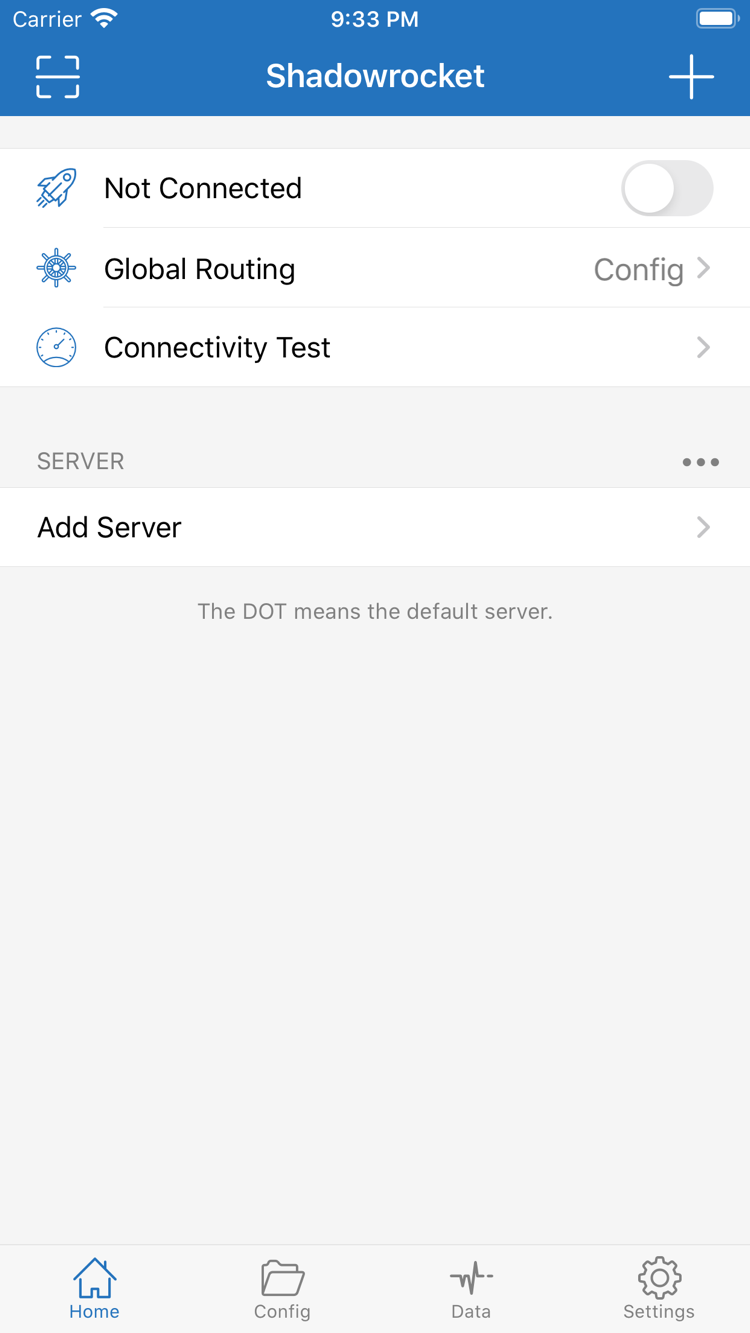
First, distinguish between servers, configuration files and the connection toggle. Servers store connection parameters; Config determines how requests are routed; the toggle on Home controls the connection state. Set up each separately—completing just one does not mean everything is ready to use.
Matching conditions → Actions
Rules are evaluated in order
In Config, edit the Rule in the active configuration. Put more specific conditions first and FINAL last. DOMAIN-SUFFIX matches domain suffixes; GEOIP checks the destination IP’s geographic location. When a rule matches, PROXY, DIRECT or REJECT determines how the request is handled. Before using rules, set Global Routing to Config on Home. After making changes, test a relevant request and check the logs to confirm which rule matched; don’t judge the whole configuration solely by whether a page opens.
DOMAIN-SUFFIX,example.com,PROXYFINAL,DIRECT
Settings
On Demand Connection Conditions
On Demand starts a connection when specified conditions are met; it doesn’t select a server or replace Rule. First connect manually and confirm that your existing configuration works. Then review the On Demand conditions in Settings and decide whether to enable them for your network use. If you disconnect manually, check that no automatic connection condition is still active, or the connection may start again. Test by changing one condition at a time and noting the network and connection results. System permissions and network changes can also affect when On Demand is triggered.
Settings → On Demand
Home
The Three Global Routing Modes
Global Routing on Home offers Config, Proxy and Direct modes. Config applies the rules in the selected configuration; Proxy sends requests handled by the client through the selected proxy policy; Direct connects directly. For troubleshooting, briefly switch modes and check whether the same destination behaves differently. This can help distinguish a rule issue from a server issue. After switching, check the connection toggle and default server. Restore your original selection when testing is done so a temporary troubleshooting setting isn’t left in place.
Global Routing → Config / Proxy / Direct
Your Existing Subscription
Importing and Updating with Subscribe
If you already have a subscription link, choose Subscribe in Add Server, then enter the link and a name you’ll recognize. After saving, check that the corresponding group appears on Home, then select a server to test. Updating rereads the content returned by that link. It may change the server entries, but it does not update rules in Config. If an update fails, check that the link is complete, your current network can reach it, and its contents use a supported format. Subscription links may contain identifying information; remove sensitive details before sharing troubleshooting records.
Add Server → Type → Subscribe
Back Up Before Making Changes
Config and the Active Configuration
Config stores settings such as rules and DNS. After importing a file, check which configuration is selected, then set Global Routing to Config to use it. Keep the original file or a copy before editing, and change one related setting at a time so you can identify and undo the cause of any problems. Server details and configuration files serve different purposes; importing one does not automatically provide the other. If you use iCloud sync, check what is being synced and confirm it has finished. Keep a usable local copy, then verify the selection, permissions and connection result on the other device.
On Home, select a server and confirm the dot appears beside it, then run Connectivity Test. The result reflects connectivity under that specific test method; it doesn’t guarantee the same result for every site or app. If the toggle is on but a destination is unreachable, check the available diagnostics in Settings, then review the current routing mode, rules and DNS settings in turn. Data can help you observe traffic changes, but increased traffic alone doesn’t prove that requests are taking the intended route. Hide server addresses and authentication details before sharing records.
Home → Connectivity Test
Settings → Diagnostics
Enter Protocol Parameters as Provided
Shadowrocket supports protocols including Shadowsocks, VMess, VLESS, Trojan, HTTP, SOCKS5, WireGuard and Hysteria2. If you already have server details, check Type in Add Server, then fill in Host, Port and authentication fields for that protocol. Fields vary by Type; don’t reuse a password or transport parameter from one protocol for another.
After importing with Scan QR Code or a supported link, open the entry and review its details. A QR code carries information but doesn’t guarantee it is complete. For example, TLS, the server name and transport settings must match your server. If you encounter an error, check the original configuration first. Avoid changing several parameters at once, or it will be difficult to tell which change affected the connection.
Data shows the traffic statistics provided by the app and can help you compare before and after a test. It is not the same as your service provider’s usage records. For a meaningful comparison, use the same test destination, time range and connection state. Check what the statistics measure before interpreting changes. The same applies to latency tests: results from different test methods are not directly comparable.
iCloud sync can sync eligible content across devices where the relevant feature is enabled. It is not a backup and does not automatically grant system VPN permission. On a new device, check the sync result, selected Config, default server and connection permissions in that order. Settings such as DNS, Ping, Log, Widget and Proxy are covered individually in the settings guide. If your connection already works, there’s no need to change everything just to match a particular value.
Before purchasing, review the App Store page for compatibility and purchase availability. Check that page for availability on your device and system requirements. Purchase records and local device configuration need to be checked separately.
Once you have your own subscription or server details, import them. On Home, select an entry in the SERVER list and confirm the dot appears beside it. Choose a Global Routing mode if needed, then turn on the connection. The system’s VPN status only indicates that the connection configuration is active; it doesn’t guarantee that every destination is reachable. Next, run Connectivity Test and check the destinations you actually need to use.
If the result differs from what you expected, note the current server, routing mode and configuration file before checking the network, server parameters and matching rules. Don’t change several settings before you start observing the results. A repeatable, single test is more useful for troubleshooting than repeatedly reinstalling the app. See the setup guide for the full sequence and common failure points.
Verify the App Store Listing & Purchase Details
Developer, Icon and App ID
Shadowrocket is a closed-source commercial app available exclusively from the App Store. Before purchasing, compare the product page details instead of relying on the name in search results. Verify the price, compatibility, purchase availability and update history on the same product page.
Shadowrocket
Shadow Launch Technology Limited
App ID 932747118
Official App Store icon
One-Time Purchase
Verify Three Details on the Same Product Page
First, confirm the app is named Shadowrocket and the developer is Shadow Launch Technology Limited, then compare it with the official icon shown on this site. Finally, check the app ID in the product page URL: it should be id932747118. Verify all three details together; a similar name, lookalike icon or search ranking is not enough on its own. After opening the App Store page from this site, you can check them again in the same order.
If you can’t find the app in search results, open the product page directly and check your current storefront, account status and Screen Time content restrictions. Availability may vary between storefronts, and your account’s storefront region is not the same as your device’s interface language. If the page says the app isn’t available to purchase, check the specific reason shown rather than repeatedly searching for similar names. See the App Store visibility troubleshooting guide.
Manage the App Purchase Separately from Connection Services
The US storefront reference price is $2.99; other storefronts display local currency. Check the App Store page for the actual price. The purchase covers use of the client, not the service needed to connect to destination servers. You’re responsible for managing server addresses, authentication details, subscription validity and any usage limits set by your service provider. Buying the app does not create any of these details automatically.
Shared Purchase History Does Not Mean Shared Connection State
You can use the purchase history for the same Apple ID to get the app on iPhone and iPad, subject to the App Store page’s compatibility and purchase details. Even after purchasing the app, each new device needs its own installation, configuration import and VPN permission. Don’t assume a new device is ready just because another device is connected. After syncing, check the selected server and Config on the new device.
When switching devices or reinstalling, look for Shadowrocket in App Store purchase history and make sure you’re signed in with the account used to buy it. If the product page asks you to purchase again, check the purchase history and account before paying a second time. Restoring the app is different from restoring local data. Before reinstalling, back up any usable configurations and keep files containing authentication details secure.
App Updates and Subscription Updates Are Different
App updates come from the App Store. Depending on your system settings, updates may install automatically, or you can check for them in the store. Subscribe updates read server details from your existing link, while Config updates concern configuration file contents. These update different things. If a problem occurs, first identify what changed, then compare it with the original settings. Don’t assume a subscription issue is caused by the app purchase.
Frequently Asked Questions
The import succeeded. Why can’t I connect?
Importing only means the information was added. Check the default server, authentication details, Global Routing and connection toggle, then run Connectivity Test. See the setup guide for step-by-step instructions.
What’s the difference between Direct and DIRECT in a rule?
Direct is an overall Global Routing mode; DIRECT is an action applied when a rule matches. To handle requests according to individual rules, select Config and check the relevant rules. See Features & Settings for details.
Does a successful Connectivity Test mean every destination is reachable?
The test only verifies connectivity under its specific conditions. Actual destinations may also be affected by rules, DNS and server status, so test the requests you need to use as well. See the FAQ for more cases.
Can I send my full subscription link when asking for help?
Subscription links and logs may contain identifying information. Remove authentication parameters, server addresses and other sensitive details before sharing. Include the observed error and only the settings needed to describe it. See the FAQ for more tips.
Featured Articles
Protocols, Rules and Your First Connection
Choose an article based on the issue you’re working on. For your first connection, start with server selection and testing. Once you have a working connection, learn how rule order works. If you need to enter parameters manually, first check how the protocol and fields correspond.
Learn the difference between protocols and transport parameters, explore types such as HTTP, SOCKS5 and WireGuard, and review the fields to check in Add Server. Recommended if you already have server details and are preparing to enter them manually.
Learn how DOMAIN, DOMAIN-KEYWORD and other rule keywords match requests, and how rule order works. Use examples to check specific conditions and final actions. Put more specific rules before broader ones.
After importing, select the default server marked with a dot on Home, confirm system permission and turn on the connection. Then use Connectivity Test and check an actual destination. An import succeeding does not necessarily mean the connection works.